Incognito mode
Summary
- Incognito mode is a privacy-safe display mode for screen sharing, training, and presentations
- Helps hide sensitive information when the system is shown to other people
- Useful for staff onboarding and training with real workflows in the live system
- Supports safe screen sharing in meetings, remote sessions, and support calls
- Makes tutorial recording safer by reducing the need to blur personal data manually
- Helps with product demos and presentations without exposing real student or parent information
- Reduces the risk of accidental data exposure during public or semi-public viewing
- Improves professionalism when demonstrating the system to staff, partners, or clients
- Supports privacy-conscious operations in schools, studios, and clubs
- Allows users to work normally while protecting confidential information on screen
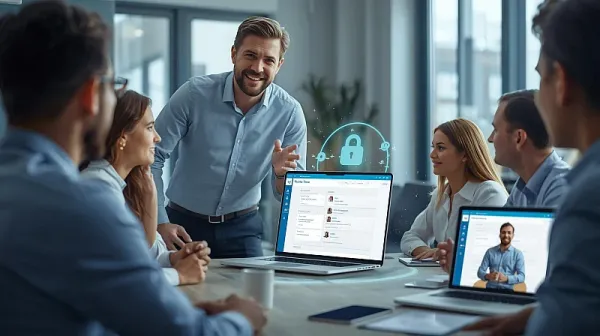
Incognito Mode in Clasero | Privacy-Safe Screen Sharing and Training Mode
Incognito mode is a special display mode designed to protect privacy when showing the system to other people.
It is especially useful when you need to:
- record training videos
- share your screen
- present the system online
- demonstrate Clasero to staff or clients
When Incognito mode is enabled, the system hides or masks the most sensitive personal and private information. This helps you use the platform safely in public or semi-public situations without exposing real user data.
Why it is useful
In everyday work, schools and activity providers often need to:
- train new employees
- explain workflows to teachers
- create help materials
- show the system during meetings
Without privacy protection, screen sharing can expose personal details of students, parents, teachers, or financial records. Incognito mode helps prevent this by making the screen safer to display.
In short
Incognito mode helps you demonstrate and train safely by hiding sensitive information while still allowing you to work inside the system.
Practical application of Incognito mode
Incognito mode is used when you need to show the Clasero system to other people without exposing real personal or sensitive data.
It is a practical tool for everyday situations where the screen is visible to others — for example during training, meetings, support, or online demonstrations.
1) Staff training and onboarding
When a company trains a new administrator or teacher, the trainer often needs to show:
- student profiles
- attendance records
- invoices
- lesson notes
- schedules
With Incognito mode, the trainer can demonstrate how the system works without showing real names, contact details, or other private information.
How it helps
- protects student and parent privacy
- makes onboarding safer and more professional
- allows training with real workflows, not just screenshots
2) Screen sharing in online meetings
Managers or administrators may need to share their screen during:
- internal team meetings
- support sessions
- remote training calls
Without privacy protection, sensitive data may appear by accident.
With Incognito mode, the user can safely navigate the system while discussing:
- lesson planning
- attendance workflows
- reports
- invoicing process
How it helps
- reduces the risk of accidental data exposure
- makes remote collaboration safer
- supports compliance with privacy expectations
3) Creating training videos and tutorials
If a company records a tutorial video for staff, the system screen may include real user records.
Incognito mode allows the company to record:
- “how to mark attendance”
- “how to create invoices”
- “how to update class information”
without revealing private customer data.
How it helps
- saves time on manual blurring/editing later
- makes it easier to create reusable training materials
- keeps videos safe to share inside the organization
4) Product demos and presentations
If a school or studio wants to present Clasero to partners, teachers, or potential clients, they may want to show the real interface and workflow.
With Incognito mode, they can present:
- dashboard
- calendar
- lesson pages
- reports
- communication tools
while keeping sensitive details hidden.
How it helps
- enables live demos without privacy risk
- improves professionalism during presentations
- allows confident system demonstrations
Real-life example
A dance school manager is onboarding two new staff members and running a Zoom training session.
They need to show:
- how to open a lesson
- how to mark attendance
- how to check invoices
- how to send parent updates
The manager turns on Incognito mode before screen sharing.
As a result:
- the trainees can learn the real workflow
- private student and parent information stays protected
- the session can be recorded and reused for future staff training
Why it is needed
In real operations, people often need to show the system, not just use it privately.
Without a privacy-safe mode, this creates a risk of exposing:
- personal data
- financial data
- internal notes
- other confidential information
Incognito mode is needed because it allows businesses to:
- train staff
- share screens
- record tutorials
- present the platform
while protecting user privacy at the same time.
In short
The practical use of Incognito mode is simple: it makes screen sharing, training, and demonstrations safe by hiding sensitive information, so businesses can work openly without privacy risks.
Benefits
- Protect customer privacy during training and demos without changing your normal workflow
- Reduce the risk of accidental data exposure when sharing your screen in meetings or support sessions
- Train new staff safely and professionally using the real system interface
- Create reusable training videos faster without spending extra time blurring sensitive information
- Present your business operations confidently to partners, teachers, or clients without revealing private data
- Support privacy compliance in daily work by minimizing unnecessary exposure of personal information
- Make remote collaboration safer for teams working across locations or branches
- Build trust with staff and clients by showing that privacy protection is built into your process
- Save preparation time before presentations because the system is ready for safe screen sharing
- Enable live demonstrations with less stress by removing the fear of showing sensitive records
- Keep internal and financial information protected while still explaining workflows clearly
- Improve onboarding quality by allowing hands-on walkthroughs in a privacy-safe environment
- Reduce manual editing work for recorded tutorials and internal training materials
- Create a more professional image with a clean, privacy-aware presentation process
- Help your team work openly and efficiently without compromising confidential data